User guide
Learn Lingtra step by step
What each feature does, where it lives and how to use it. No need to read it end to end; jump to the part you need from the list. The app itself is in Turkish, so button names are given in Turkish with their meaning.
- 1Open your fileWord, PDF, XLIFF or a Trados package. Pick the language pair; the project sets itself up.
- 2Translate and confirmSentence by sentence, confirm with Enter. Memory, terms and suggestions at your side.
- 3ExportA Word file in the same layout, or the file that goes back to the agency, in one click.
Getting started
Pick the language pair and open your file; the project sets itself up.
On the start screen, pick the source language first (Fransızca → Türkçe, French → Turkish, or İngilizce → Türkçe, English → Turkish), then press Dosya aç (Open file). You can open:
- Word (.docx): the best result; formatting, tables, images and footnotes stay in place.
- PDF: converted to Word first. Paragraphs, headings, bold/italic and footnotes are kept; tables become plain text and images are left out. Scanned PDFs can't be opened.
- XLIFF (.xlf, .xliff, .sdlxliff) and Trados packages (.sdlppx) from translation agencies. See below.
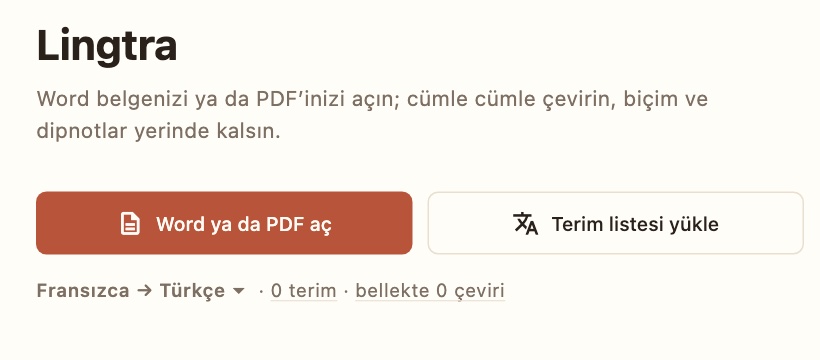
Lingtra splits the document into sentences and creates a project. Everything is saved as you type; there is no save button. Projects are listed under Son projeler (Recent projects) and reopen at the first unconfirmed sentence.
Free version: every feature, for 1 project and up to 500 terms. A yearly Lingtra Pro subscription removes both limits.
Sentence by sentence
Type, press Enter: the sentence is confirmed, remembered, and the next one opens.
The editor shows the source on the left and your translation on the right. The active sentence has a terracotta bar on its left.
- Type the translation and press Enter: the sentence is confirmed, stored in memory, and the next unconfirmed sentence opens.
- ⌥↓ / ⌥↑ move between sentences without confirming.
- ⌘⇧K copies the source into the translation (handy for names and titles).
- When the same sentence appears more than once, confirming one fills the others with the same translation (as drafts, marked TKR).
The icon on the right shows the status: a green check is confirmed, an empty circle is a draft, a yellow or red icon is a QA warning. Hover it to read what it is.
Formatting tags
Put bold, italics, links and footnotes in the right place in your translation.
Bold, italics, links and footnote marks appear inside the sentence as numbered colour chips (1 B bold, 1 I italic, 1 U underline and so on). Chips with the same number form a pair: the text between them gets that formatting.
- Click a chip in the source, or press ⌘., to place the next tag at the caret.
- A chip behaves like one character: the caret steps over it and deleting removes it whole.
- A forgotten tag shows up as an error in the Kalite (Quality) tab; place it before exporting so formatting isn't lost.
Translation memory
Offers sentences you translated before when similar ones come up.
Every sentence you confirm goes into a translation memory kept per language pair. When a similar sentence comes up, the Bellek (Memory) tab on the right shows scored matches with the changed words marked (deleted in red strike-through, added in green).
- ⌘1–⌘3 apply the first three matches.
- An empty sentence with a 100% match is filled automatically (as a draft).
- Bellekte ara (Search memory) shows how a word or phrase was translated before.
- Belleği yönet (Manage memory) lets you search, edit and delete units.
- Import and export TMX; TMX files from Trados and other tools are read.
Termbase
Keeps concepts translated the same way; understands Turkish suffixes.
The termbase keeps a concept translated the same way every time. Terms found in the source are highlighted in yellow; their translations appear in the Terimler (Terms) tab and a click inserts them at the caret.
- Add terms one by one from the panel, or with Terim listesi yükle (Load term list) from an Excel/CSV/TSV file: first column source, second column translation. Turkish Excel's semicolon separator is understood.
- It knows Turkish suffixes: the term “sözleşme” counts as used when the translation says “sözleşmesinde”, and “hüküm” when it says “hükmü”. French and English inflections are found on the source side.
- If a term in the document is translated some other way, the Kalite tab warns you.
- Each term can carry a note and a reference (useful for a thesis glossary) and the list exports as CSV.
Batch pre-translation
Fills empty sentences in one go from memory, and with AI if you like.
The lightning icon in the toolbar (Toplu ön çeviri) fills the empty sentences in one go. It saves a lot of time at the start of a long chapter or after importing your earlier translations into memory.
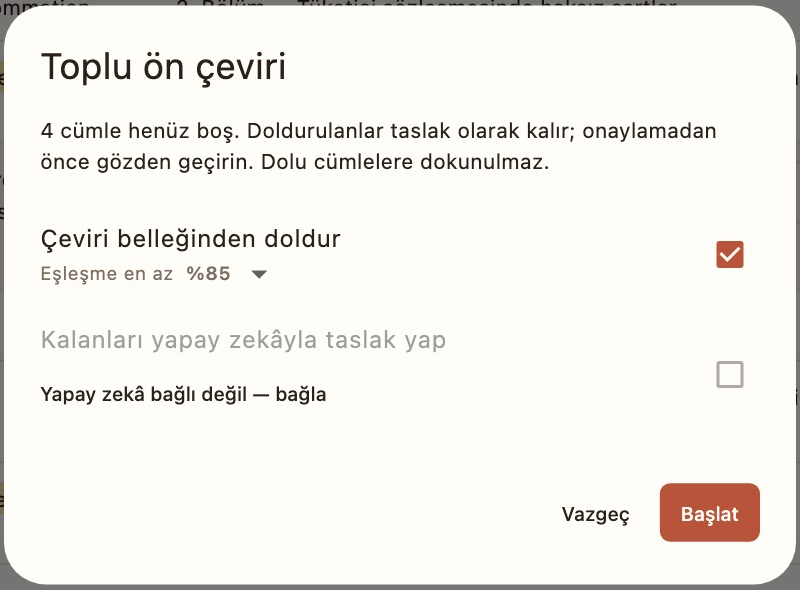
- Fill from memory: sentences whose best match reaches the threshold you pick (100, 95, 85 or 75%) get that translation.
- Draft the rest with AI (optional): the AI service you connected translates the remaining empty sentences one at a time. Free tiers accept few requests per minute; when one is hit, Lingtra waits and carries on by itself. Durdur (Stop) ends the run at any time and keeps what was written.
Filled sentences stay drafts and show where they came from:
- %100exact memory match
- %87similar memory match
- YZAI
- TKRrepetition in the document
- İNCfrom a review file
Read and fix each one, then confirm with Enter. The mark disappears as soon as you type in a draft.
Autosuggest
Type the first letters and completions come from terms, memory and the source.
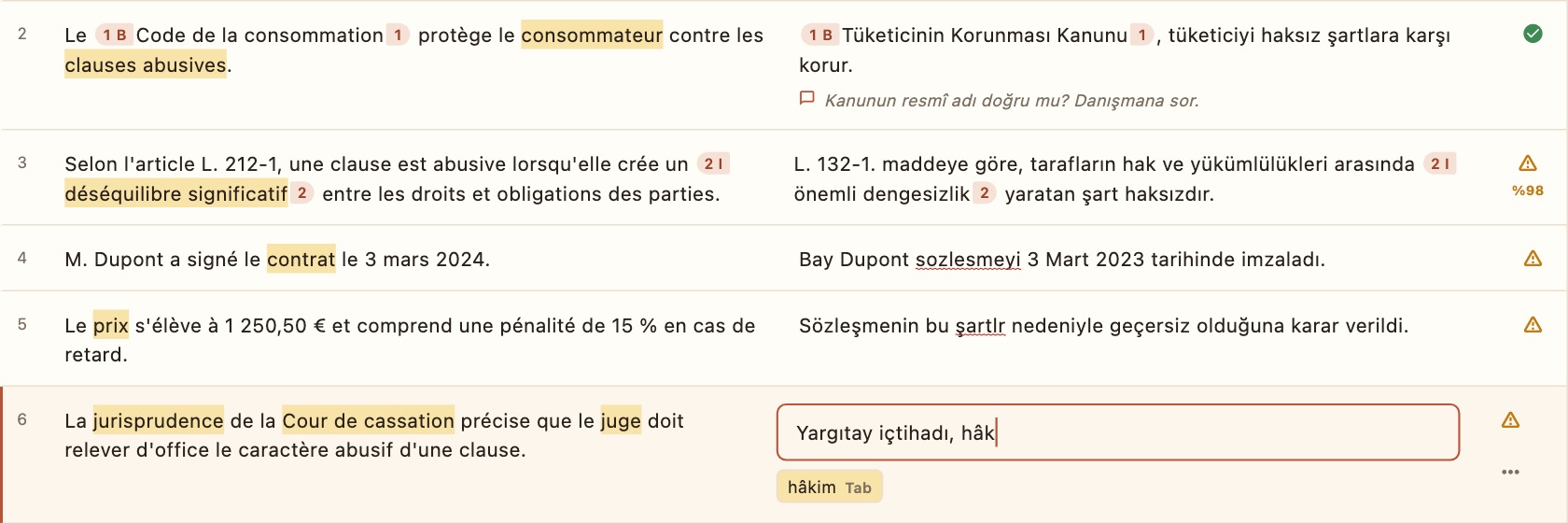
After the first two letters of a word, completions appear under the translation field. They are specific to the sentence and come in this order:
- translations of the terms in the sentence,
- the AI suggestion (if you asked for one),
- words from similar translations in memory,
- names and figures from the source (Dupont, L.132-1, 2024).
Tab takes the first one; click the others, or tap on iPad. If you started with a capital, the completion follows. Without a completion, Tab works as usual.
AI suggestions
Sentence suggestions from Gemini, OpenAI or DeepL with your own key.
Optional. Lingtra has no AI of its own: on the Yapay zekâ bağla (Connect AI) page you enter your own key for Google Gemini, OpenAI or DeepL. The page explains step by step how to get a key for each; Gemini's free tier takes a few minutes.
- ⌘J, or the AI card in the Bellek tab, asks for a suggestion for the sentence and applies it.
- Optionally a suggestion is requested whenever you reach an empty sentence (keep this off on paid services to save money).
- Gemini and OpenAI use the terms found in the sentence as a glossary; tags come back in place.
- Only the sentence and its matching terms go, straight from your device to the service you chose. Keys stay on the device and are never included in backups.
QA and spell check
Catches tag, number, term, consistency and spelling problems as you type.
The Kalite (Quality) tab updates as you type. It lists the active sentence's issues and the numbers of every sentence with a warning (click one to go there). Warnings never block confirming.
What is checked
- Tags: missing or extra formatting tags.
- Numbers: a number in the source is missing from the translation (
1 250,50and1.250,50count as the same). - Terms: a term in the document was not translated with its termbase entry.
- Consistency: the same source sentence translated differently in different places.
- Typography: double spaces, a space before punctuation (the French habit:
Neden ?), final punctuation or first-letter case that doesn't match the source, a doubled word such as “ve ve”. - Empty translations.
Turkish spell check
Words missing from the dictionary get a red wavy underline, checked once you move on to the next word. The dictionary understands Turkish suffixes, so long inflected words such as “sözleşmenin”, “yükümlülükler” or “imzalanmasıyla” are not flagged.
- Right-click the word (long-press on iPad) for corrections, Sözlüğe ekle (Add to dictionary) and Yoksay (Ignore). Corrections favour missing Turkish letters: “sozlesme” suggests “sözleşme”.
- Sözlüğe ekle accepts the word and its suffixed forms for good; Yoksay lasts until the app is closed.
- Words that appear in the source as written (names, foreign words), your term translations, proper names with an apostrophe (Lingtra'da) and all-caps abbreviations (TBMM) are never flagged.
- Turn the check off at the bottom of the Quality tab; Sözlüğüm (My dictionary) lists the words you added.
Comments and review
Leave notes; your advisor edits in Word and you bring it back in one click.
Comments
From the ⋯ menu beside a sentence, Yorum ekle (Add comment) leaves a note for yourself or your advisor. It shows under the translation; click it to edit.
Bilingual review file
In the toolbar's ⋮ menu, İki dilli inceleme dosyası (Word) saves the project as a side-by-side Word table: number, source, translation, status and comment. Your advisor or editor reads it in Word without needing Lingtra.
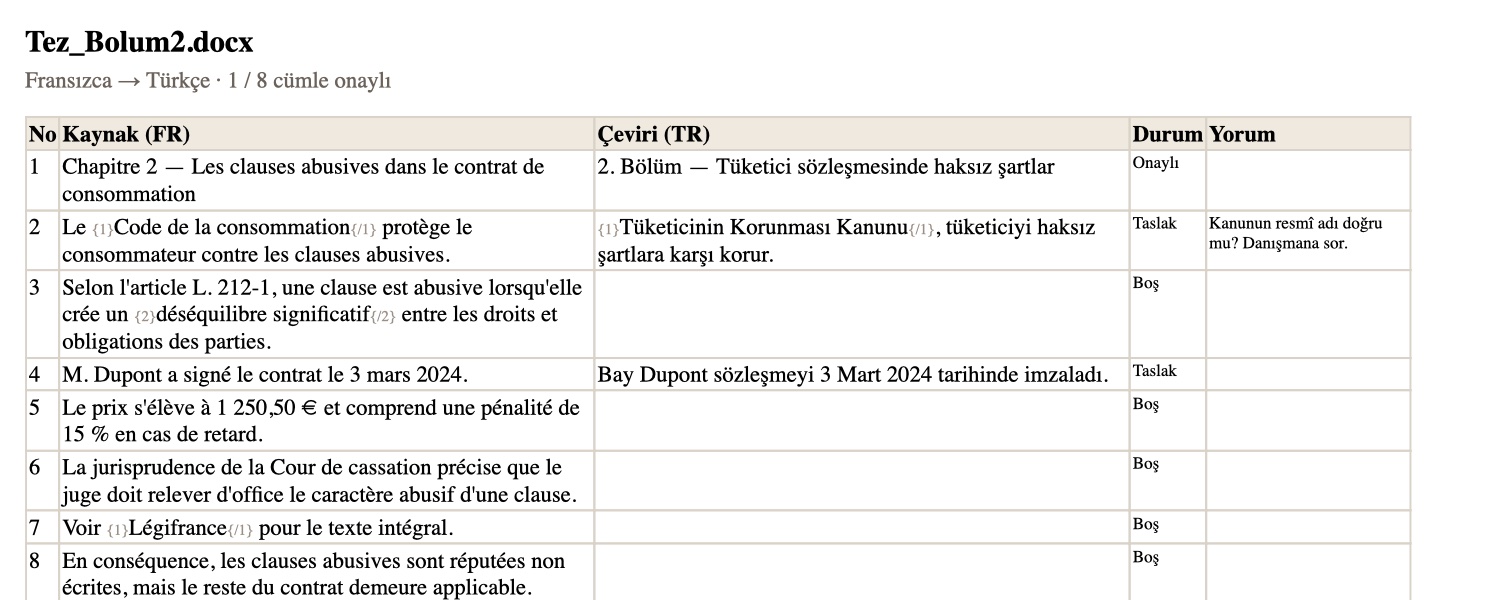
{1} markers carry the formatting.- The reviewer may edit the translation column, with Track Changes on if they like.
- They can write in the comment column or use Word's own comments.
- They should keep the grey
{1}markers, moving them if needed.
When the file comes back, choose İncelemeden geri al (Import review) from the same menu. Changes are taken as accepted; edited translations become drafts marked İNC, and comments are attached to their sentences. Rows that don't belong to the project are skipped, so nothing lands on the wrong sentence.
XLIFF and Trados files
Opens agency XLIFF and Trados files and builds the return package.
Agencies usually send work as files exported from Trados. Lingtra opens them directly:
- .xlf / .xliff (XLIFF 1.2) and .sdlxliff (Trados Studio).
- .sdlppx (Trados project package). The Turkish (tr-TR) files in the package open as one project.
The source language comes from the file. Sentences already translated or approved in the file arrive confirmed, and the agency's formatting tags appear as chips.
On Dışa aktar (Export):
- XLIFF and SDLXLIFF are saved under the same name with your translation.
- For a package you get the return package (.sdlrpx) to send back to the agency.
- Confirmed sentences go out as Translated, unconfirmed drafts (memory and AI suggestions included) as Draft. Sentences the agency approved and you didn't touch keep their status.
Files and packages whose target language isn't Turkish won't open; for now Lingtra translates from English and French into Turkish only.
Search, merge, split
Find and replace; merge and split badly segmented sentences.
- ⌘F searches the source or the translation and narrows the list to matching sentences. ⌘⌥F opens find and replace; Listedekilerde değiştir (Replace in list) changes every match at once (confirmed sentences stay confirmed and memory is updated).
- If a sentence was split in the wrong place, use Sonrakiyle birleştir (Merge with next) in the ⋯ menu; to cut a long sentence in two, choose Cümleyi böl (Split) and tap the word the second half starts with. The change is saved and survives reopening the file.
Word count and analysis
Word counts for quotes, in the match bands agencies use.
The analysis button in the toolbar compares the document with memory and sorts the words into: confirmed, repetitions, 100%, 95–99%, 85–94%, 75–84% and new. Tabloyu kopyala (Copy table) pastes into Excel or your quote; the bands match the ones agencies price by.
Export
Save the translation in the original layout, as a separate file.
Dışa aktar (Export), top right, saves the translation in the original file's layout. For Word that's a separate _TR.docx: your original is never touched, and the text is marked as Turkish so Word's own spell check works right away. Untranslated sentences stay in the source language, so a half-finished translation can be exported and reviewed too.
On iPad, export goes through the share sheet: save to Files, email it, or open it in another app.
Backup and moving devices
Keep your work in one file and move it to another device.
Your work lives only on your device; Lingtra has no accounts and sends nothing to a server. That makes regular backups important.
- Yedek → Yedek al (Backup → Back up) on the start screen writes projects, memory, terms and your own dictionary into one
.lingtrafile. Keep it in iCloud Drive, another cloud folder or on a stick. - On another device (Mac or iPad), Yedek → Yedekten yükle (Restore) opens the same file and you carry on where you left off. Restoring replaces that device's data; the previous state is still kept for safety.
- If you haven't backed up for a week, the start screen reminds you.
- AI keys are never included in backups; connect them again on the new device.
Keyboard shortcuts
Translate without reaching for the mouse.
On Mac and on iPad with a keyboard. The strip at the bottom of the editor shows the most common ones.